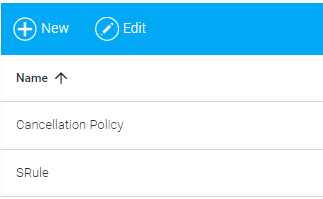
The Maintain Cancellation Policies screen allows administrators to create a cancellation policy for instructor-led class sessions that have a cost. The cancellation policy can include refund and no-show rules. This cancellation policy can then be associated with specific class instances, and the user is required to agree with this policy before they are able to enroll in a class session.
To open the Maintain Cancellation Policies screen, go to Tools > Maintain Cancellation Policies in the Navigation Bar of the Administrator's Console.
To create a cancellation policy, click the New button in the top toolbar. The Edit button can be used to make changes to an existing policy.
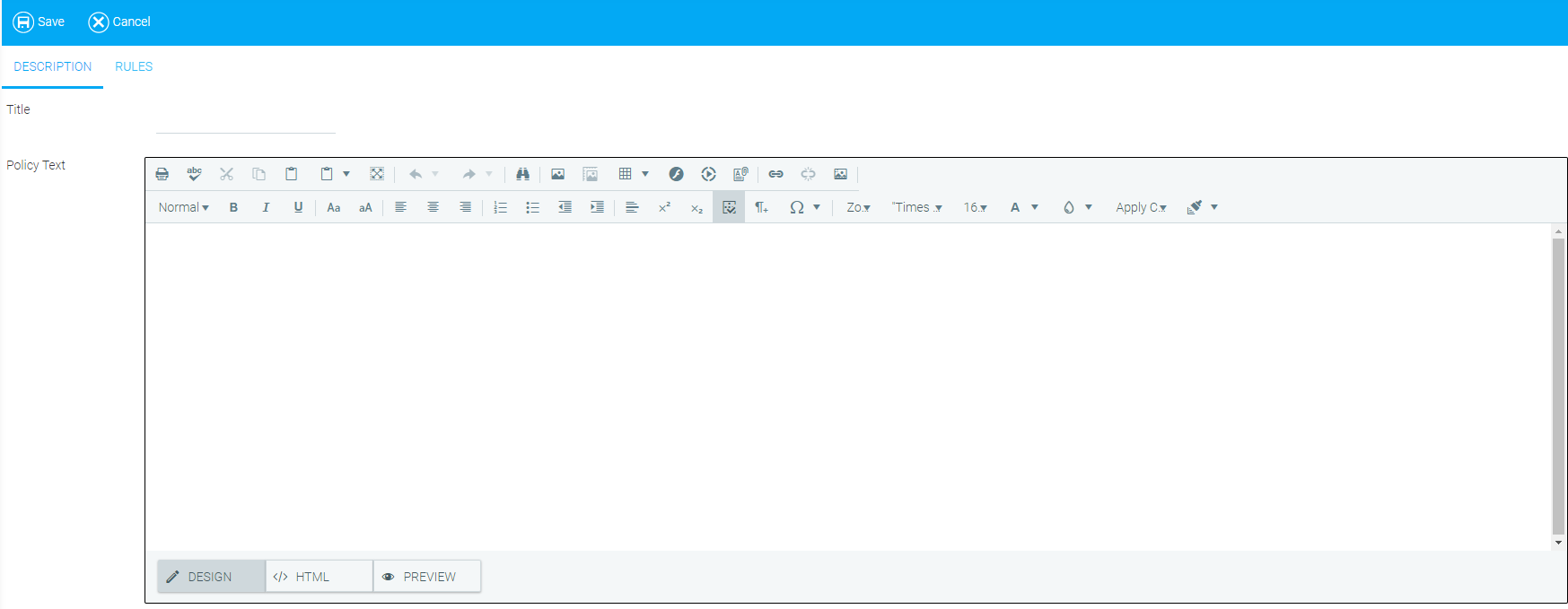
Enter a title for the cancellation policy. This title will appear in the drop-down list used to select which cancellation policy should be used for a class.
Enter the text of the cancellation policy. This is the text that the user will read and agree to when enrolling in a class that utilizes this cancellation policy.
The Rules tab allows the administrator to set the financial rules for the cancellation policy.
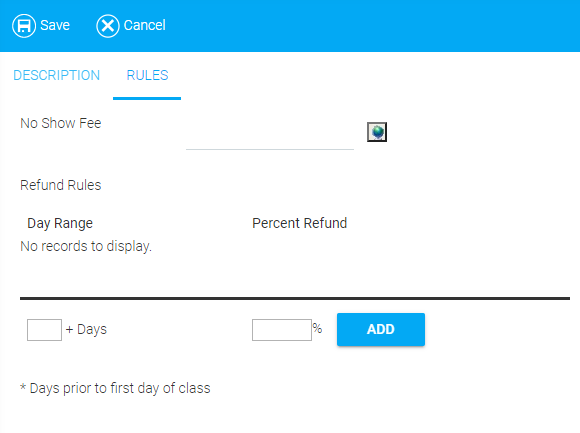
Fill in all of the fields that apply. Options include:
Click Save.
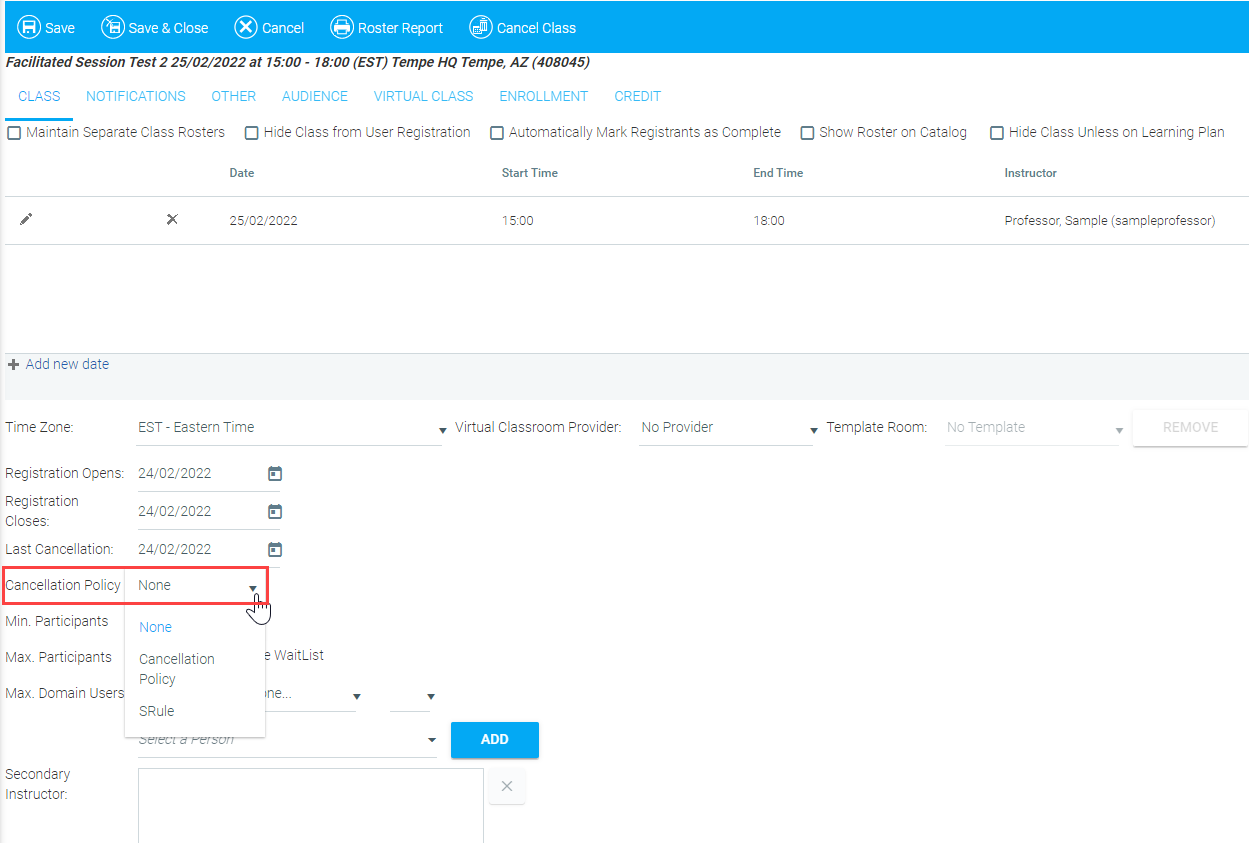
A cancellation policy is associated with a specific class instance on the Maintain Facilitated Sessions screen. To select a cancellation policy, go to the Class tab of the class in question. Use the Cancellation Policy drop-down menu to select the desired cancellation policy.
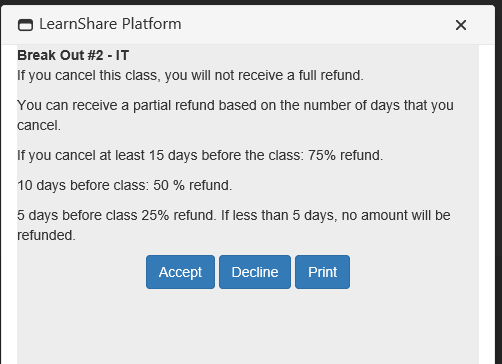
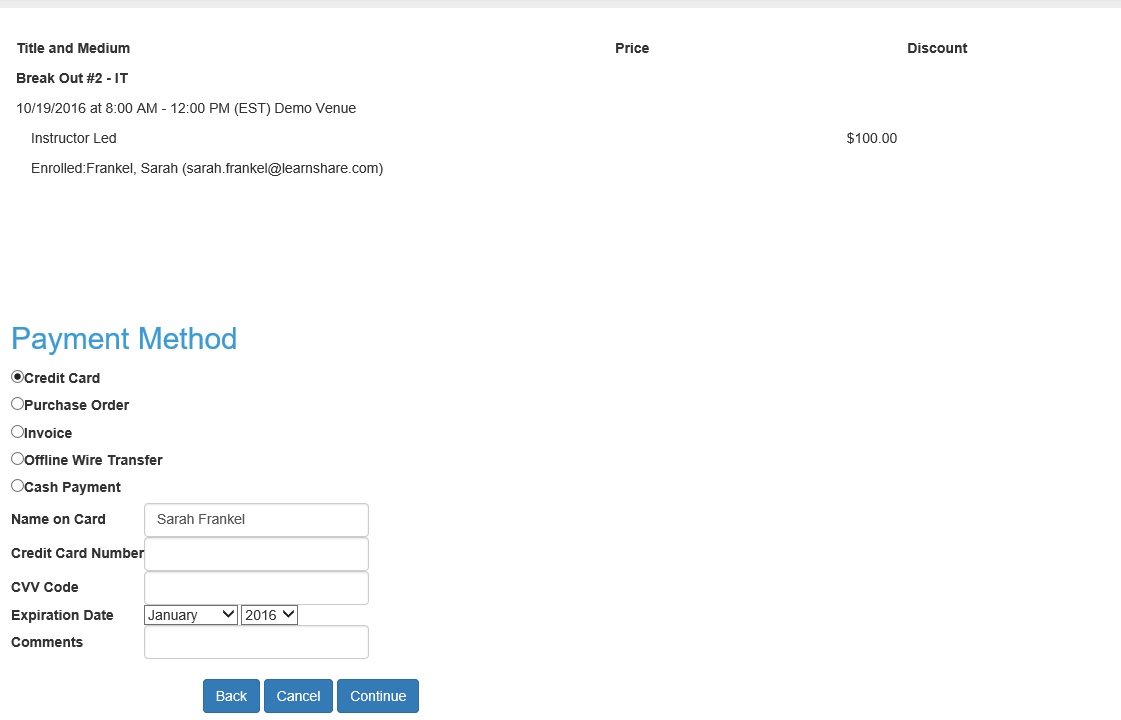
When a user enrolls in a class that has a cancellation policy, they will be prompted to accept the cancellation policy before their enrollment is complete. Since a cancellation policy can only be used in conjunction with a class that has a cost, the cancellation policy is typically displayed part way through the shopping cart process as shown below.
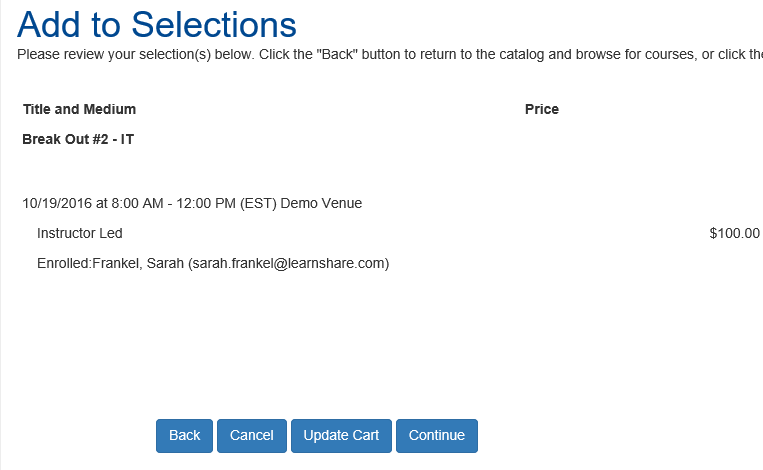
Once a user adds a class to the cart and clicks Continue, a pop-up box is displayed with the policy text of the cancellation policy.
The user must accept the policy in order to complete the enrollment.
When the user clicks Accept, they will continue to the payment step in the shopping cart.
If the user declines the cancellation policy, the pop-up box will close and the user will remain at the first step of the shopping cart. The transaction can only be completed when the policy is accepted.